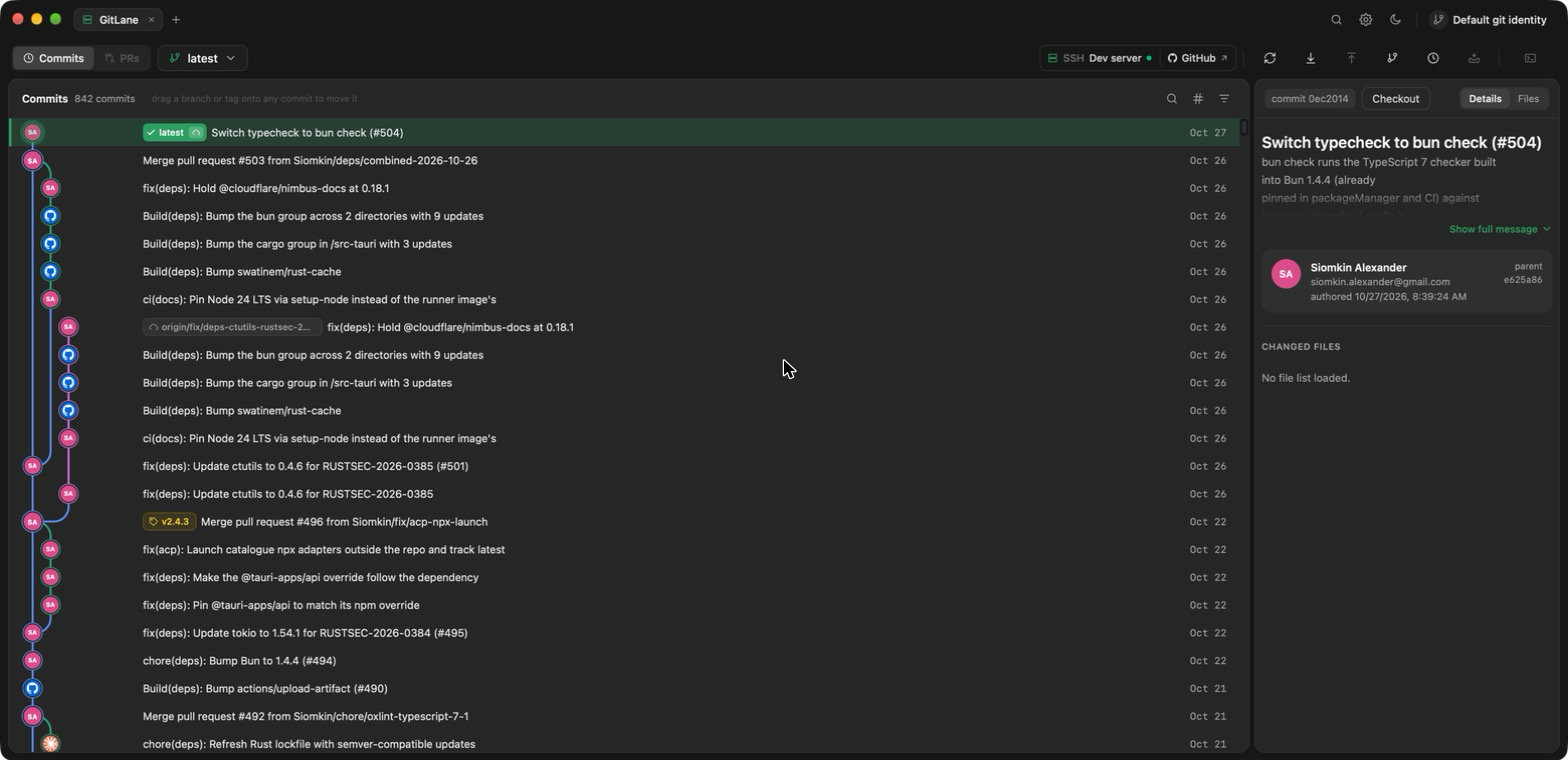
Beta. Many projects live on a remote machine: a dev box, a build server, a cloud VM. GitLane can open a repository there over SSH and work on it as if it were local: the graph, diffs, staging, commits, branch operations, conflicts, stashes, worktrees, fetch, pull and push. The code stays on the server. GitLane copies no history or files to your computer; only what you are looking at crosses the connection.
What you need
- A Linux server on x86_64 or aarch64 with
sshdand git 2.36 or newer. It needs no internet access and no administrator rights. - SSH access with a key, a password, or both. GitLane connects with your own
sshand its settings in~/.ssh/config. Whensshneeds to ask something (a password, a key passphrase, a one-time code), GitLane shows the question in a dialog and passes your answer to that connection only. It never saves it.
The first time you connect to a server, GitLane shows its key fingerprint and asks
whether to trust it, as ssh would in a terminal. If you trust it, the key is added
to your SSH known hosts. If a server’s key ever changes, GitLane refuses to
connect and says so.
Open a remote repository
-
On the home screen, choose Open remote repository.
-
Pick a server. The list shows your saved connections, then the hosts in your
~/.ssh/config, which work without saving anything.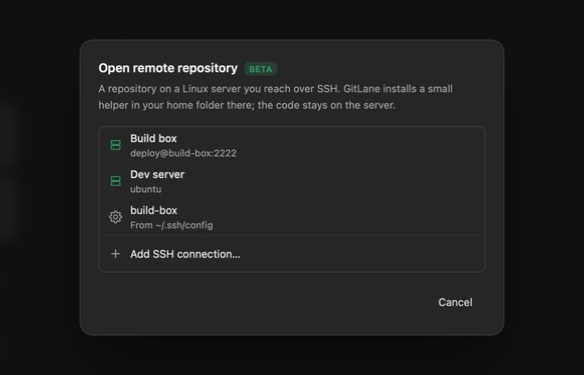
-
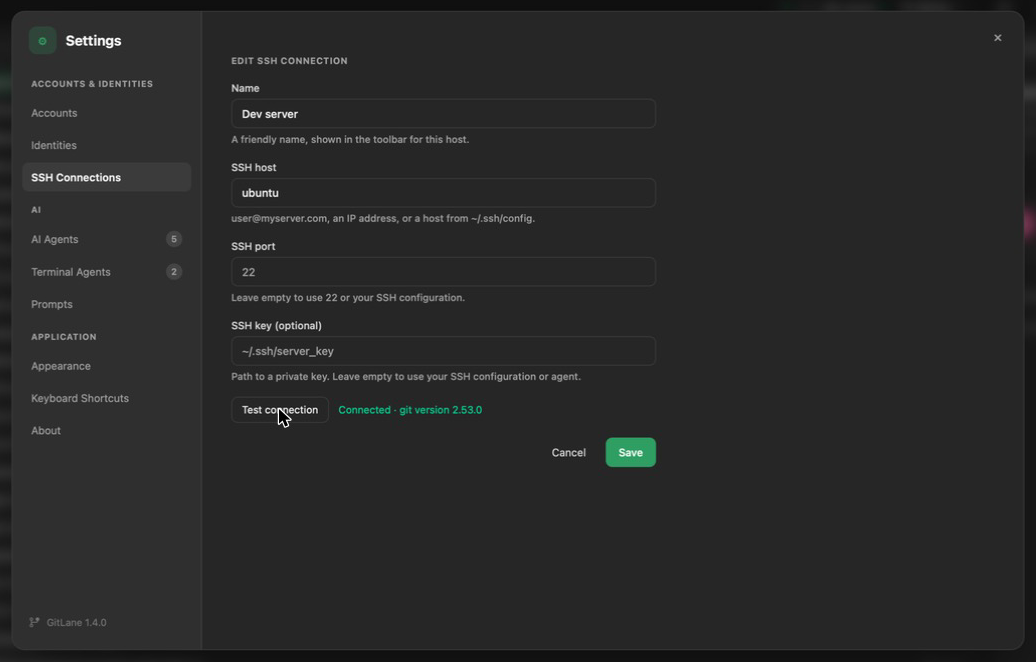
To add a server, choose Add SSH connection… and fill in:
- Name: how the server appears in the toolbar, such as “Work laptop”.
- SSH host:
user@server, an IP address, or an alias from~/.ssh/config. - SSH port: leave it empty for 22 or your SSH settings.
- SSH key (optional): the path of a private key, such as
~/.ssh/work_ed25519. When set, GitLane uses only that key for this server.
Test connection checks it, including any sign-in question, without saving.
-
Answer any sign-in question.
-
Browse the server’s folders, starting in your home folder. Repositories are marked: click one to open it. You can also type a path and choose Go.
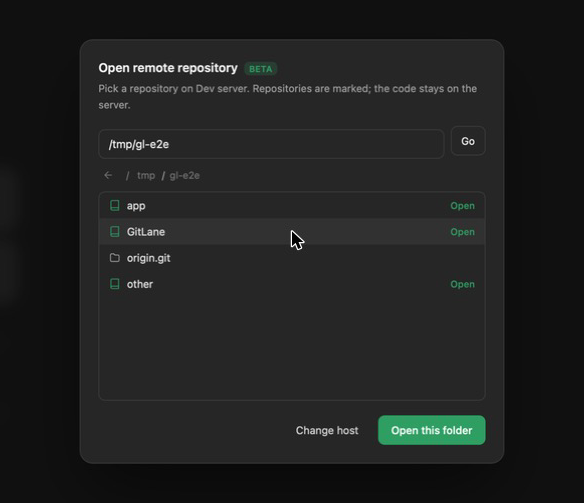
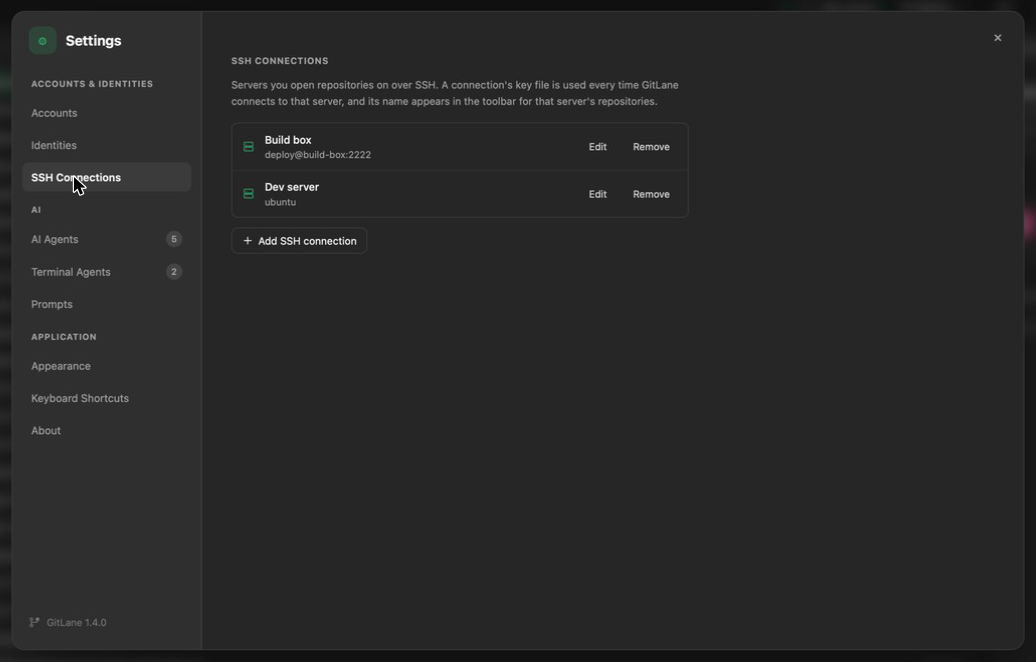
Saved connections can also be added, edited and removed in Settings → SSH Connections. GitLane keeps them in its own settings; no password or key is stored, only the key file’s path.
The first time, GitLane installs a small helper, gitlane-agent, in
~/.gitlane-server/<version>/ on the server. It shows the download and upload
progress, then opens the repository in a tab. The helper is signed with GitLane’s
release key and checked before upload. Each app update installs its matching
version. The previous version is kept and older ones are removed.
The repository appears in Recent as ssh://host/path and reopens on the same
host. All tabs on one host share a single SSH connection, which ends when you close
the last of them.
Pushing and pulling
Fetch, pull and push run on the server, with the server’s own logins. The accounts you added in GitLane don’t apply there, and GitLane never sends them, or any token, to the server.
If GitLane says the server has no login for a remote, sign in on the server once, in a terminal there. Pick whichever matches the remote’s address:
- GitHub over HTTPS (
https://github.com/…): rungh auth loginon the server. GitLane then uses that login for every GitHub remote on the server, with nothing else to set up. - Any remote over SSH (
git@github.com:…): add an SSH key on the server to your account on GitHub, GitLab or Bitbucket. - Other HTTPS remotes: set up a credential helper on the server that works
without a terminal, such as Git Credential Manager with the
secretserviceorcachestore.
If you’d rather have the server push with your local SSH key, turn on agent
forwarding for that host in your own ~/.ssh/config (ForwardAgent yes).
A terminal on the server
Terminal in the toolbar opens a shell on the server, in the repository’s folder.
Each terminal has its own SSH connection to the same server, with the same user, port
and key file as the tab. If the server asks for a password, a key passphrase or a
one-time code, type it into the terminal, as you would when running ssh yourself.
GitLane hands it to ssh and doesn’t keep it.
- A busy terminal doesn’t slow the tab down, and a terminal keeps running if the tab loses its connection.
- If the repository’s folder no longer exists on the server, the terminal shows the error and closes.
- There are no agent buttons. The agents GitLane lists are the ones installed on your computer; to run one on the server, type its command.
What isn’t available on a remote repository
These act on your computer rather than the server, so they’re turned off for a remote tab, and their buttons say so:
- pull requests
- editing files in the file view (files open read-only)
- Reveal in Finder and Open with default application
- AI actions and agent sessions
Staying up to date
Changes made on the server, for example a commit from a shell there, show up on their own, the same as for a local repository. If the server can’t watch the repository (Linux limits how many directories one user can watch), GitLane tells you once and refreshes whenever you return to the window. To raise the limit on the server:
sudo sysctl fs.inotify.max_user_watches=524288When the connection drops
If the server becomes unreachable, the tab shows Can’t reach <host> with the reason, and a Reconnect button. Your other tabs keep working.
| Message | What to do |
|---|---|
| Host key wasn’t trusted | Connect again and choose Trust and connect if the fingerprint is right. |
| Host key has changed | Find out why first. If the server was reinstalled, remove its old entry with ssh-keygen -R <host>, then connect again. |
| Didn’t accept the sign-in | Check the user name, password, passphrase or key. |
| Could not connect | Check the host name, network, VPN, or ProxyJump in your SSH config. |
| Unsupported platform | GitLane’s helper runs on Linux x86_64 and aarch64 servers only. |
Removing the helper
Delete the directory on the server. GitLane reinstalls it the next time you open a repository there.
rm -rf ~/.gitlane-server