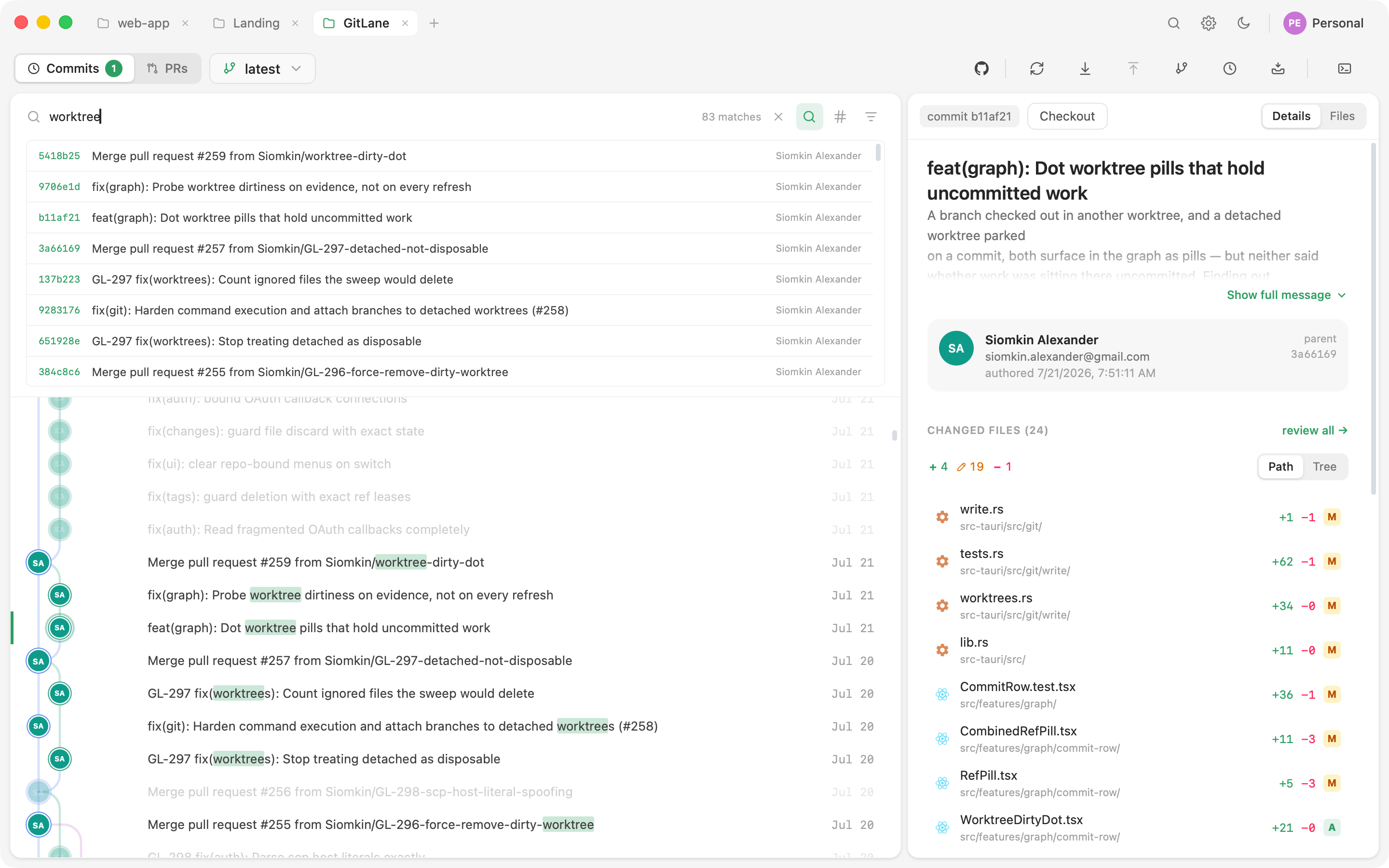
Incremental search
Type, and matches highlight in place while everything else dims. Message, SHA, author, and branch are all matched. Open it with Cmd/Ctrl + F while the history view is focused. Nothing is filtered out or reordered, so a hit keeps its position in the tree and you keep your sense of where you are in history.
Advanced search
Incremental search covers what’s loaded. Advanced mode searches the whole repository:
| Filter | What it does |
|---|---|
| Message regex | Full regular-expression match on commit messages |
| Author | Match by author |
| File path | Which commits touched this path — with autocompletion |
| Date range | since / until bounds |
| Pickaxe | Git’s -S: which commit changed this code? |
Click a result and the graph pages in as much history as it takes to land on it, then scrolls there.
The branch navigator
Press Cmd/Ctrl + Alt + F.
The navigator is a two-pane dropdown, not a permanent sidebar: a category rail (All / Branches / Remotes / Worktrees / Tags / Stashes, with counts) beside the matching list. Type to filter; click anything to move the graph to its tip.
Ordering. Branches and remotes sort by the tip commit’s committer time — git records no branch creation time, so this is the closest honest proxy for “most recently active.” The checked-out branch and any pinned rows sort above.
Pinning. Pin the refs you live in. Pins persist per repository.
Following one file
When the question is about a single file rather than the repository, switch to the file-history surface — revisions, line-by-line blame, and ref-to-ref compare all live there.