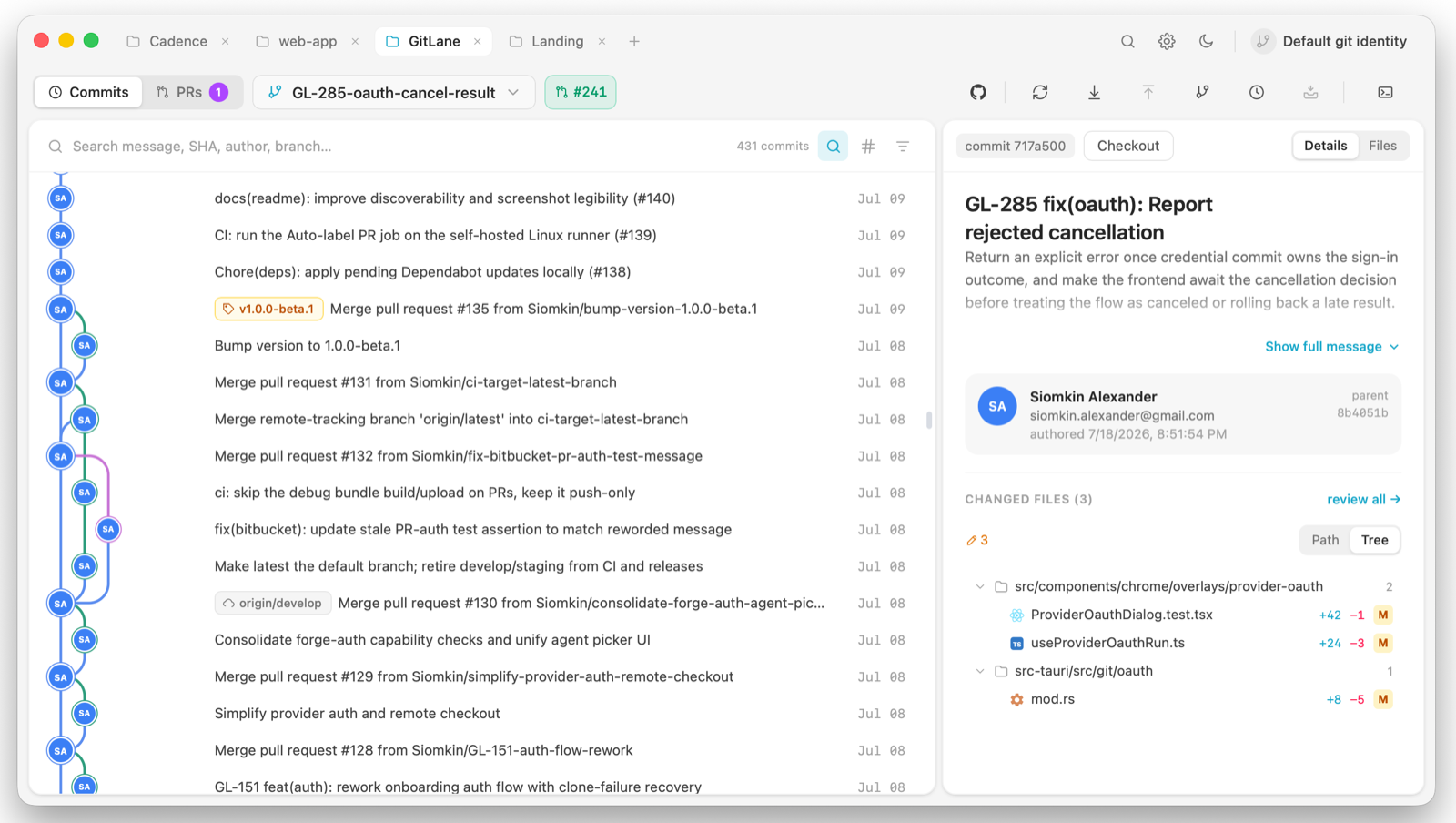
Every line of history gets its own lane and its own colour. That’s the whole premise: instead of one tangled column, each concurrent line of development is a visually distinct swimlane you can follow with your eye.
What’s in the view
Branches, remotes, tags, stashes, and your uncommitted work all live in the same tree rather than in separate panes:
- Stashes appear at the point in history where you made them, not in a detached list.
- Uncommitted changes float on top as a WIP row.
- Commit nodes show author avatars, with badges for co-authors and for commits made by bots and AI agents — Claude, Codex, Cursor, Copilot, and Dependabot are recognised.
Selecting commits
Click a commit to inspect it. Two modifiers extend the selection:
| Action | Result |
|---|---|
| Click | Select one commit |
| Shift + click | Select the range between the two |
| Cmd/Ctrl + click | Add or remove one commit from the selection |
A multi-commit selection is what powers combined-diff review, squashing, and AI actions — see Staging and committing and Branch operations.
Why it stays fast
The layout is computed in Rust. A topological walk over the commit DAG
assigns each commit a lane through a reservation scheme, and the result is a
plain list of (row, lane, colour) coordinates plus edges. The frontend is a
dumb painter: it draws those coordinates onto a <canvas>, which keeps
redraws cheap at thousands of rows where DOM or SVG nodes would not be.
The list is also virtualized — only the rows in the viewport (plus a small overscan) exist at any moment, and the canvas backing store is bounded to match.
The practical result: histories with thousands of commits scroll smoothly, and paging in more history is incremental rather than a full reload.
It updates itself
A filesystem watcher watches the open worktree recursively, including .git
— so commits, checkouts, and staging you do in a terminal all register.
Bursts of events are throttled so a busy rebase doesn’t thrash the UI, then
the view quietly re-syncs.
Getting around
Jumping to a specific ref or commit is covered in Search — incremental highlighting for what’s on screen, full-repository search for what isn’t, and the branch navigator (Cmd/Ctrl + Alt + F) for refs.